Shopify puts you in the theme code for this, which sounds more alarming than it is. You are adding lines to one file, and Shopify keeps a copy of the theme you can revert to.
Editing theme.liquid
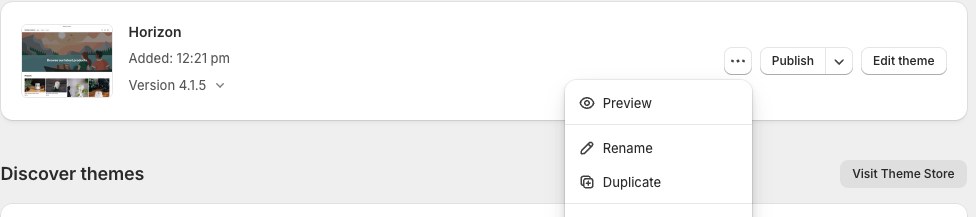
Duplicate your theme first. Online Store, then Themes, then the three dots beside your live theme, then Duplicate. This is thirty seconds and it is your undo.
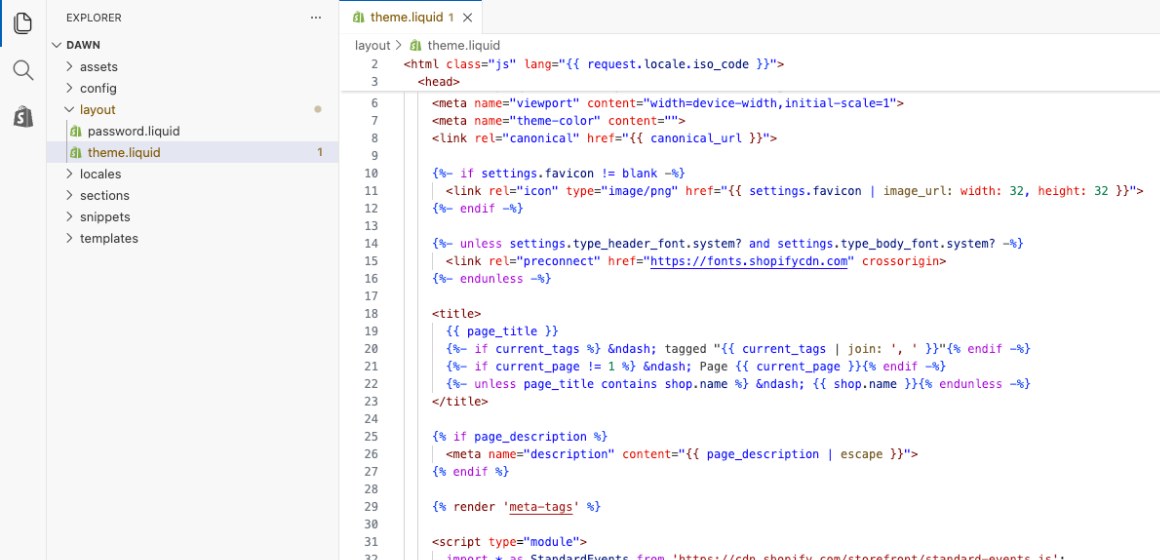
Open the code editor. Online Store, then Themes, then Edit code on the theme you are changing.
Open
layout/theme.liquid. It is the file every page of the store is built inside.Paste the structured data just before
</head>. Include the<script>tags, then save.
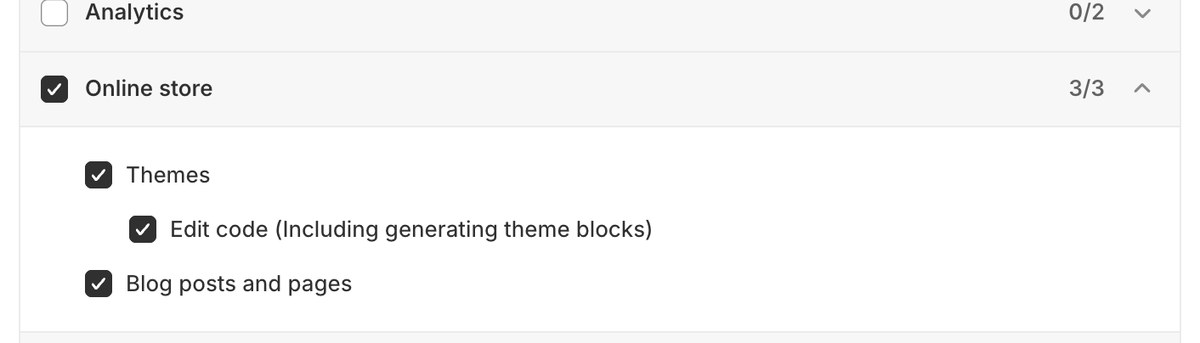
Your theme describes products; this describes the business, so the two sit alongside each other rather than competing. If you do not see Edit code, your staff account lacks the Edit code permission, and the store owner can add it under Settings, then Users. The permissions to ask for are Themes, Edit code and Blog posts and pages, all under Online store on the role you are given.
FAQ markup: on the FAQ page only
The FAQ structured data describes questions and answers a visitor can read. It belongs on the page that shows them, never in theme.liquid, which would put it on every page of the store. Publish the questions as a page first, then:
Online Store, then Edit theme.
From the page selector at the top, Pages, then Create template. Name it
faqand base it on your default page template.Add section, then Custom Liquid, and paste the FAQ block into it. Save.
Open the FAQ page under Online Store, then Pages, set its Theme template to
faq, and save.
Google stopped showing FAQ results in its search listings in May 2026, so this will not change how you look on Google. It is still the plainest way to tell an AI reading the page which lines are questions and which are answers.
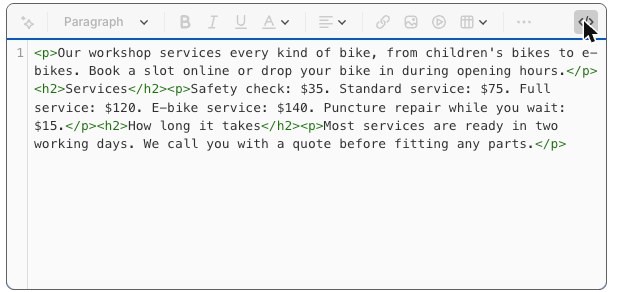
Write the questions themselves in Online Store, then Pages. Each question is a heading and each answer the paragraph under it. The <> button at the right of the editor toolbar opens the code view, which is the reliable way to paste headings and answers together: pasted as rich text, the headings arrive as plain paragraphs.
Share previews: settings, not code
Shopify’s own themes already write share preview tags on every page, from that page’s search engine listing. Do not paste the share tags file into theme.liquid: every page is built inside it, so the blocks would give every page the same card, and a second set would sit beside the theme’s own.
The title and description. Each page, product and collection has a Search engine listing with Page title and Meta description. A shared link uses them. Where they are.
The picture. Products, collections and blog posts use their own featured image. Every other page, including your homepage, uses the store’s image from Online Store, then Preferences, then Social sharing image and SEO. Set that one first, because it is what most of your pages show.
If the scan still names a page after both are set, your theme is not a Shopify theme or has had its meta tags removed, and whoever built it can put them back.
Business details
Your phone number and address are under Settings, then General, in the store contact details, and they show on your policy pages. Shopify does not publish them, or your opening hours, as structured data describing your business. That is what the business details file adds, joined to the structured data block by the same @id so an engine reads one business.
Fill every capitalised slot, or delete that line. Opening hours you are not sure of are worse left in than left out.
Paste it into
layout/theme.liquidjust before</head>, beside the structured data, using the steps above. The same business is true on every page, so the shared file is the right place for this one.
The footer contact block
Most themes have a footer section in the theme customiser with a text block. Use that rather than the code editor: it is ordinary content, it is easier to change later, and it survives a theme update. Business name, phone number as a tap-to-call link, and the towns you cover.
Checking it worked
Load your storefront, view source and search for application/ld+json. Then run the address through Google's Rich Results Test. If nothing changed, check you edited the theme that is actually published rather than the duplicate.
If your screens do not look like this, the wording has moved rather than the setting. Search your platform for the words in bold above. If you still cannot find it, send us the scan link and we will tell you where it is on your setup.