Every page, product and collection in Shopify has its own search engine listing, and that is where the title and summary live. The homepage is the exception, and hiding a page from search engines takes a few more steps than it should. Both are below.
The title and summary
Open the page, product or collection in your Shopify admin.
Find Search engine listing near the bottom and click the pencil icon to edit it.
Page title: what the page offers, between 30 and 60 characters.
Meta description: one or two sentences, between 120 and 155 characters.
Save.
Leave the meta description empty and Shopify writes one for you: the first 320 characters of the product or collection description, cut off mid-word. That is why a scan reports summaries of exactly 320 characters on a store where nobody wrote any. The fix is the field, not the description.
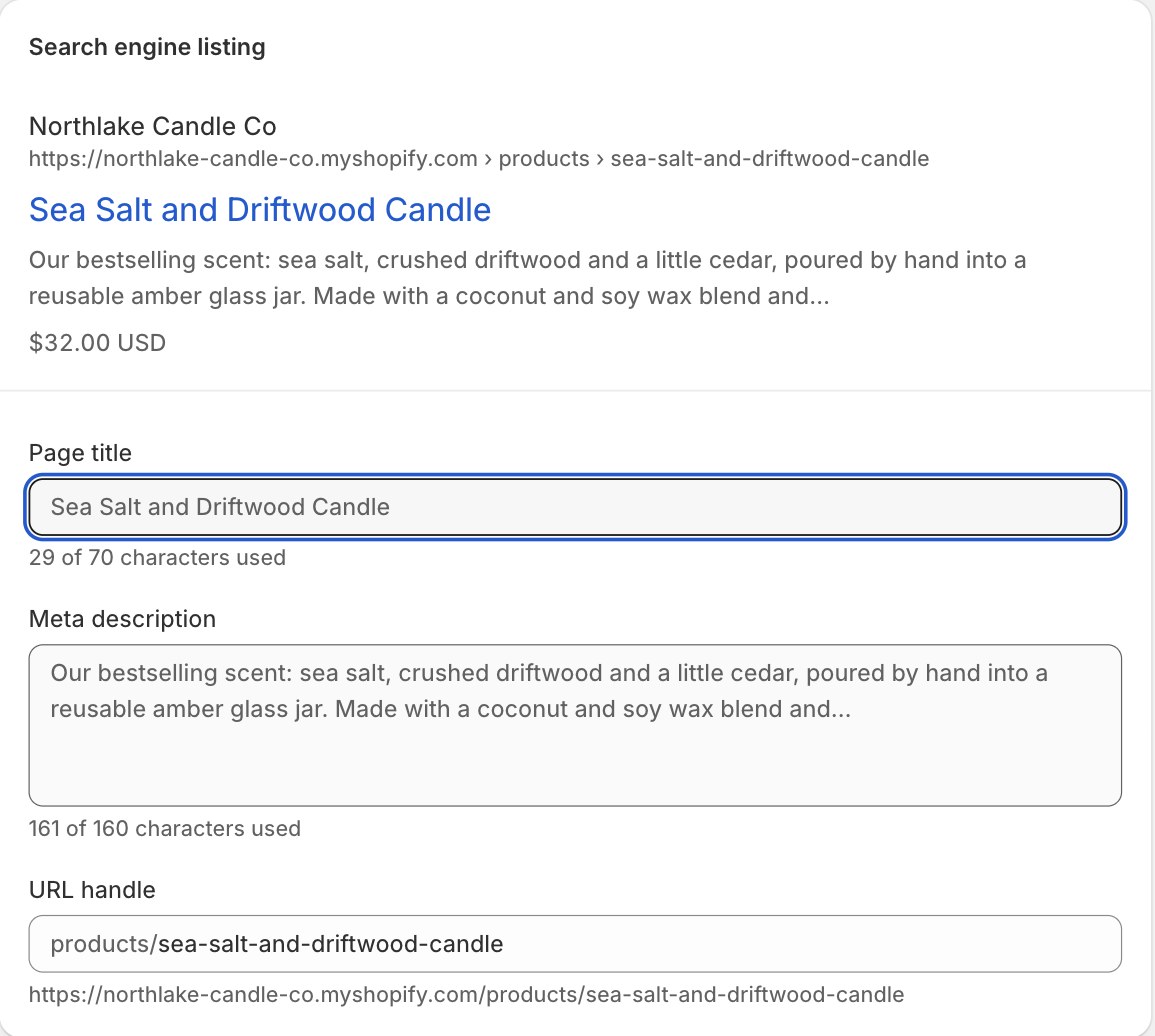
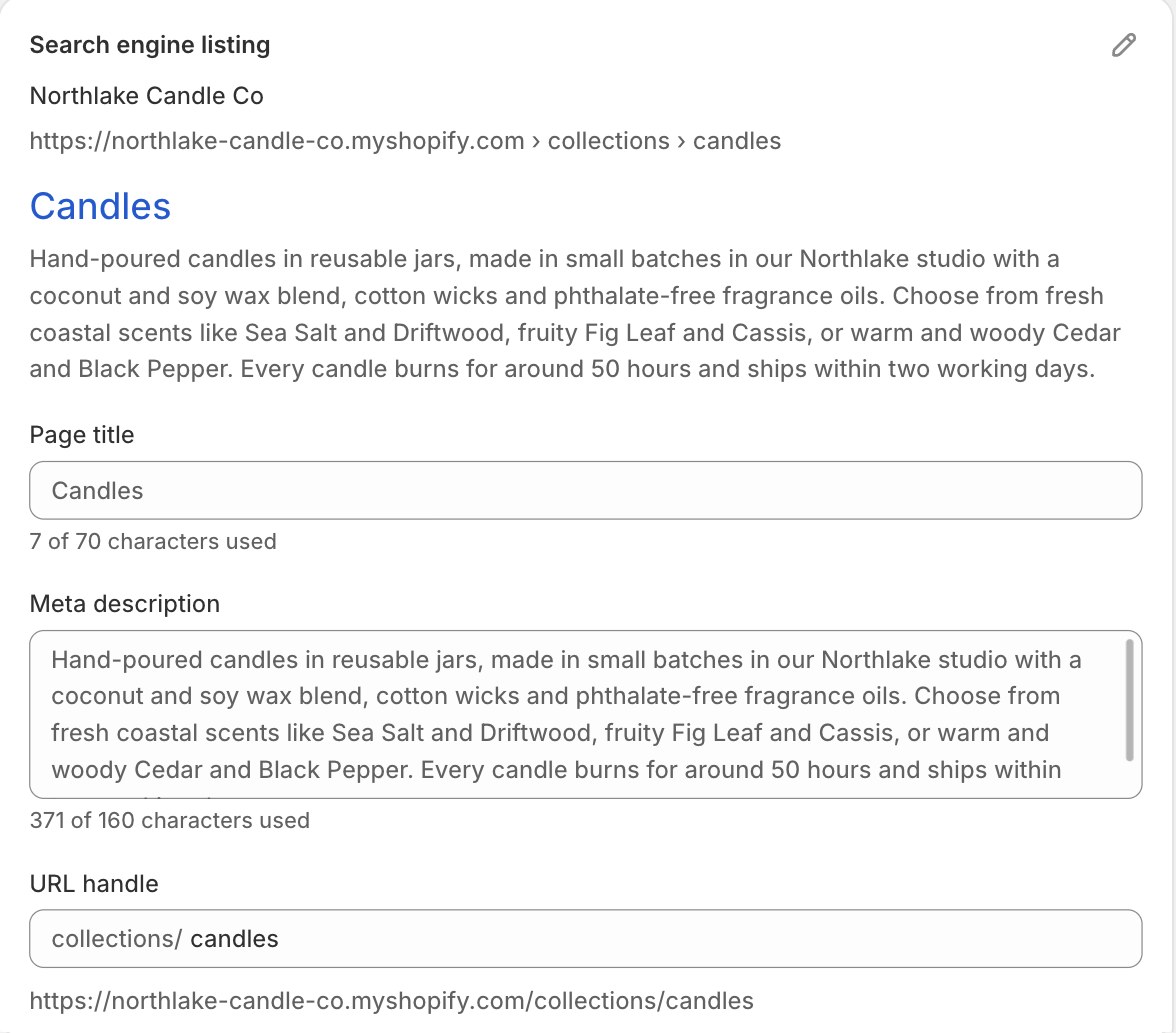
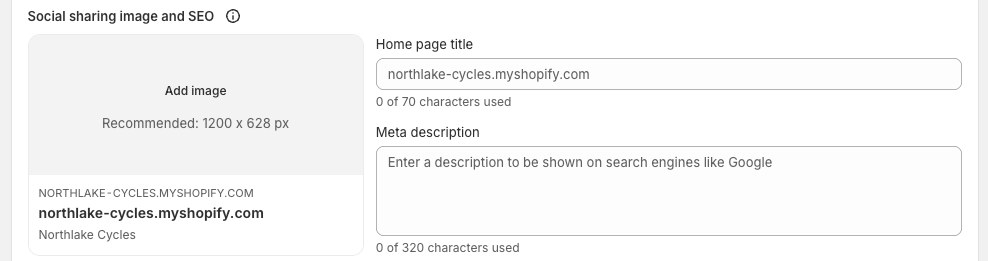
For the homepage, go to Online Store, then Preferences, and fill in the title and meta description under Social sharing image and SEO.
A page hidden from search engines
Shopify has no switch for this. A page is hidden by a metafield called seo.hidden set to 1, often left behind by an app or a developer. To see it or undo it:
Settings, then Metafield definitions, and look under Pages, Products and Blog posts for one with the namespace and key
seo.hidden.Open the page the finding names and find the Metafields section.
Clear the value of that metafield, and save. The page is visible to search engines again.
A product can also be hidden by being set to Unlisted, which keeps it out of search and your sitemap. Change its status to Active if you want it found.
One main heading
Most Shopify themes print the page, product or collection name as the Heading 1, so headings you add yourself start at Heading 2. In the content editor, select the text, open Formatting in the toolbar and choose Heading 2. The menu offers Heading 1 as well, and using it gives the page a second main heading.
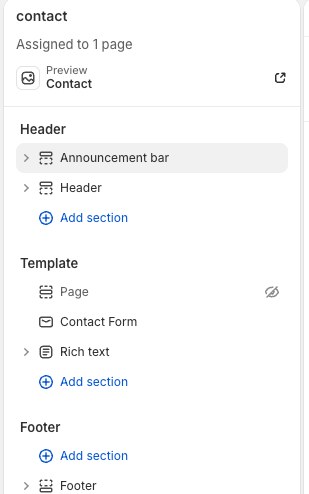
A page or collection with no main heading at all usually means the section that prints its name is hidden rather than missing. In Online Store, then Edit theme, use the preview address bar to open the template the finding names and look down the left panel under Template. A hidden section is greyed out with a crossed-out eye beside it. Click that eye to show the section again, then Save.
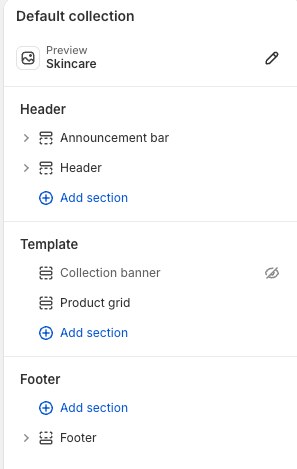
One hidden section can cost you every page of that type, because a template is shared. Hide the banner on one collection and all of your collections lose their main heading at once. The same applies to the Page template, which every page you write uses.
If a filter app draws the product grid instead of the theme, the section may genuinely be gone. Its settings or its support team can usually print the collection name as a heading.
Describe your photos
Theme images. Online Store, then Edit theme. Click the section with the image, click Edit on the image, type the alt text and save, then save the theme.
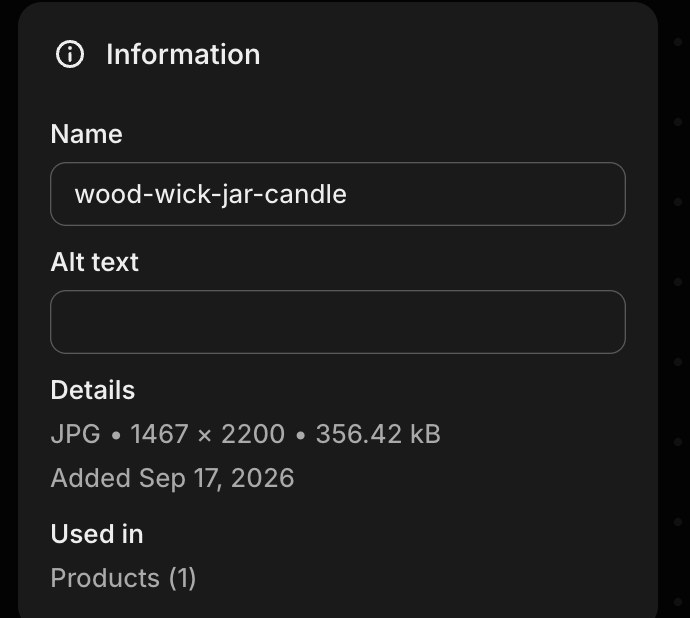
Product photos. Open the product, click the photo, then Add alt text and Save alt text. Say what the photo shows, in under 125 characters.
The store language
Your store’s default language, under Settings, then Languages, is the one your theme declares on every page. Make sure it is the language your pages are written in.
Link your new pages from the footer
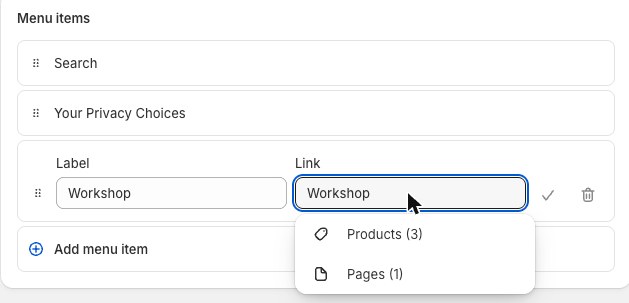
A page nothing links to is a page an engine may never reach. Shopify does not add new pages to your menus for you, so an About, FAQ or Contact page can sit published and unlinked for years. Go to Content, then Menus, open your Footer menu, choose Add menu item, type the label, then pick the page from the list rather than pasting an address.
Checking it worked
Open the page, view its source and search for <h1 (one result), name="description" (your summary), noindex (no result) and lang= (your language). Then re-run your scan.
If your screens do not look like this, the wording has moved rather than the setting. Search your platform for the words in bold above. If you still cannot find it, send us the scan link and we will tell you where it is on your setup.