Structured data goes in the <head> of your pages. WordPress gives you three ways to put it there and they are not equally safe. The one to use is a header code box, which survives theme updates. The one to avoid is the theme file editor, which does not.
Using WPCode, step by step
WPCode is free, it is on a large share of WordPress sites already, and it is the least you have to install. If your theme customiser has a header scripts field, or your page builder has a custom code area, those do the same job and you can skip this.
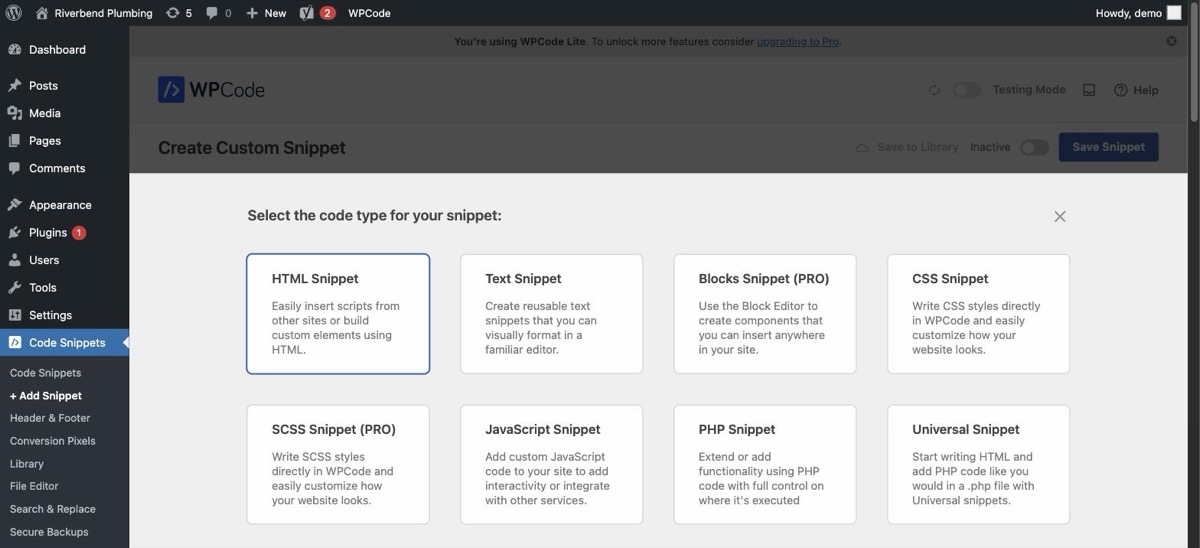
Code Snippets in the sidebar, then Add Snippet.
Add Your Custom Code, which is the blank one rather than a library snippet.
HTML Snippet when it asks for a code type.
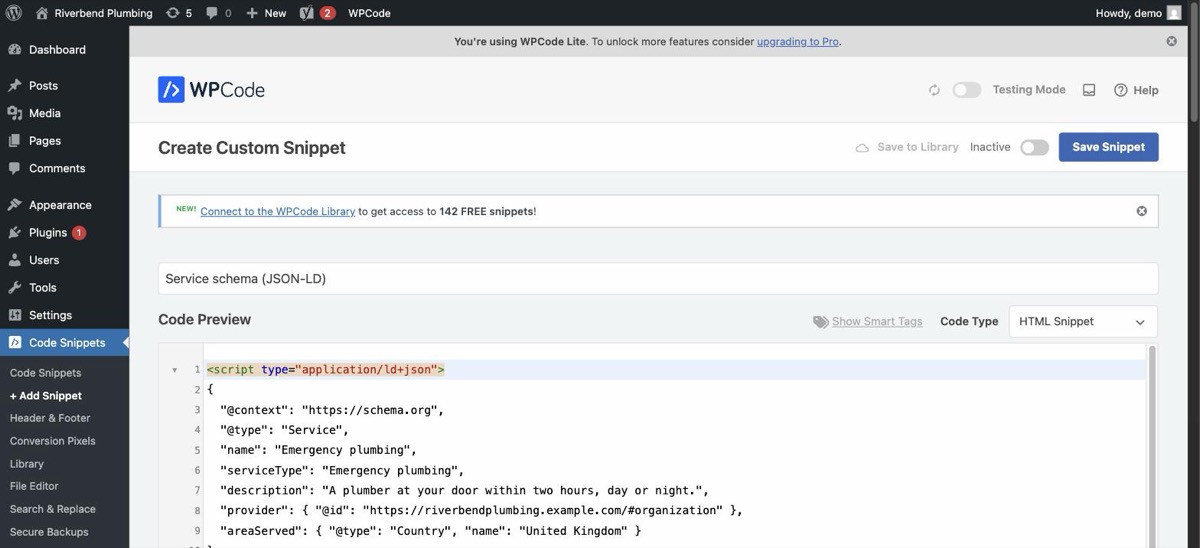
Give it a name you will recognise in a year, such as
Service schema (JSON-LD).Paste the block into the code box.
Leave the location on Site Wide Header, which is already selected. That is the
<head>of every page.Activate the snippet with the toggle, then Save Snippet. A saved but inactive snippet does nothing, and it is the commonest reason a check does not move.
Adding services without replacing your identity
Every schema block can carry an @id, which is how two blocks say they are talking about the same thing. Yoast publishes your business at https://yourdomain.com/#organization. If your service block names that same address as its provider, an engine reads one business that offers services. If it does not, an engine reads two businesses.
"provider": { "@id": "https://yourdomain.com/#organization" }Rank Math and All in One SEO use their own address for the same node. View source, search for #organization, and use whatever your site already publishes.
Share previews: use the Social section, not a snippet
Share preview tags describe one page each, so they do not belong in a Site Wide Header snippet, which would give every page the same card. If you run Yoast, it already writes them for every page from the page title, an automatic summary and the first image. What the scan asks for is usually a better picture or a summary written on purpose, and that is a field rather than code.
Open the page in the editor and click the Yoast SEO icon in the top bar.
Social media appearance in the panel that opens.
Select image and choose a photo of your work at least 1200 by 630 pixels. Then fill in Social title and Social description, using the values the file gives for that page.
Return to your page, then Save. Nothing is published until the page is saved.
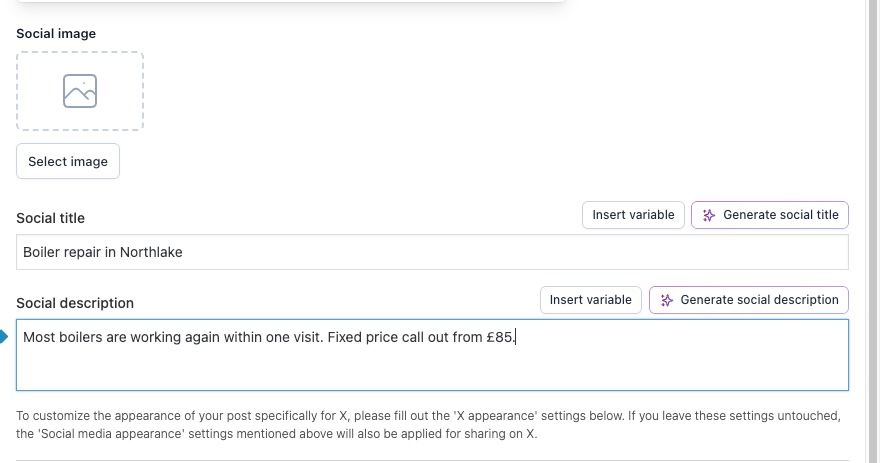
Rank Math has the same fields under the Social tab of its page panel. With no SEO plugin at all, installing one of these is quicker and safer than pasting a block into each page.
Business details: the settings, then one snippet
Yoast describes your business from Yoast SEO, then Settings, then Site representation. Set your organisation name and logo there first, because the business details file joins the identity Yoast publishes rather than starting a second one.
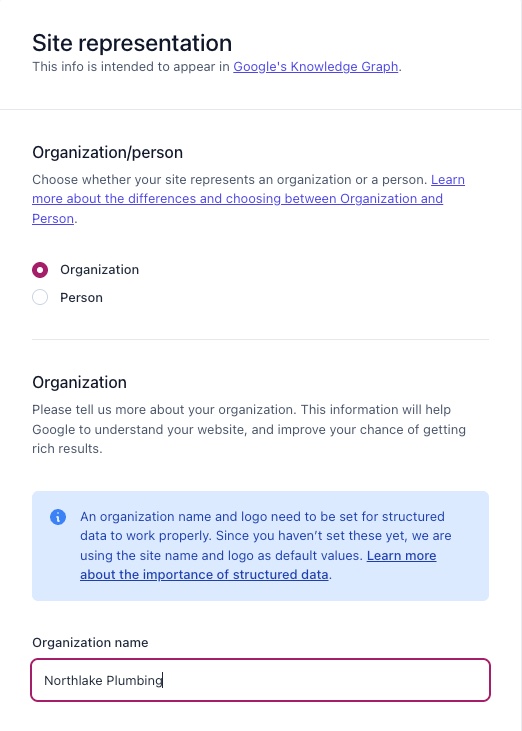
The free version stops there: it does not publish your phone number, your opening hours or the area you cover. Those are what the business details file adds. Fill every capitalised slot or delete that line, then paste it as its own WPCode snippet using the steps above. Site Wide Header is right for this one, because the same business is true on every page.
The footer contact block
The contact block is ordinary page content rather than head code. Most themes have a footer widget area under Appearance, then Widgets. Add a Custom HTML widget there and paste it in. On a block theme it is Appearance, then Editor, then the footer template part.
Check your footer first. If your phone number is already there as text rather than inside an image, this check is already passing and there is nothing to add.
Checking it worked
Load your homepage, view source and search for application/ld+json. Count the blocks: you should see your plugin’s and yours, and exactly one business name between them. Then paste the address into Google's Rich Results Test.
If it finds nothing, the code almost certainly went into a footer box rather than a header box, which is the commonest mistake on WordPress. A caching plugin will also happily serve the old page for a while, so clear the cache before you decide it did not work.
For share previews, paste the page address into LinkedIn's Post Inspector, or view the page source and search for og:image. You should see the picture you chose, once.
If your screens do not look like this, the wording has moved rather than the setting. Search your platform for the words in bold above. If you still cannot find it, send us the scan link and we will tell you where it is on your setup.