Two files matter here, and on WordPress you almost certainly have one of them already and can switch the other on in a single click. Check what you have before you upload anything. The commonest way to go wrong on this finding is to replace a good sitemap with a worse one.
Check what you already have
Open both of these in a browser before you change a thing.
yourdomain.com/sitemap.xml If a list of addresses loads, you have a sitemap. WordPress has generated one at
/wp-sitemap.xmlsince version 5.5, and Yoast, Rank Math and All in One SEO each replace it with their own.yourdomain.com/llms.txt If text loads, you have one of those too, and your question is which pages it lists rather than how to create it. Skip to the section below.
If you do have a sitemap, the one thing worth adding is its address on the last line of your robots.txt, so that anything reading that file finds it.
Sitemap: https://yourdomain.com/sitemap.xmlYoast already has llms.txt, and it is switched off
If you run Yoast there is nothing to upload. Go to Yoast SEO, then Settings, then Site features, and look under AI tools. The feature is built in, it is free, and it is off until somebody turns it on, which is why most WordPress sites have no llms.txt rather than a bad one.
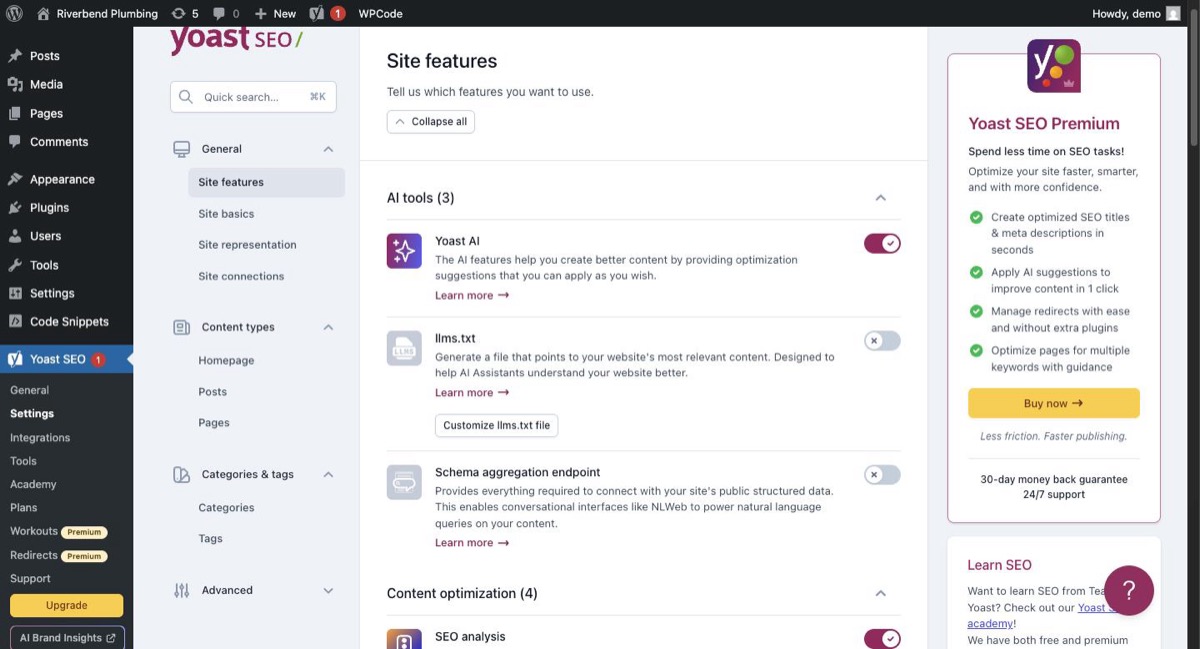
Turn it on, then open yourdomain.com/llms.txt to confirm it answers.
Choosing which pages it lists
This is the part worth your attention, because the default is a guess. Yoast picks the pages for you unless you tell it otherwise.
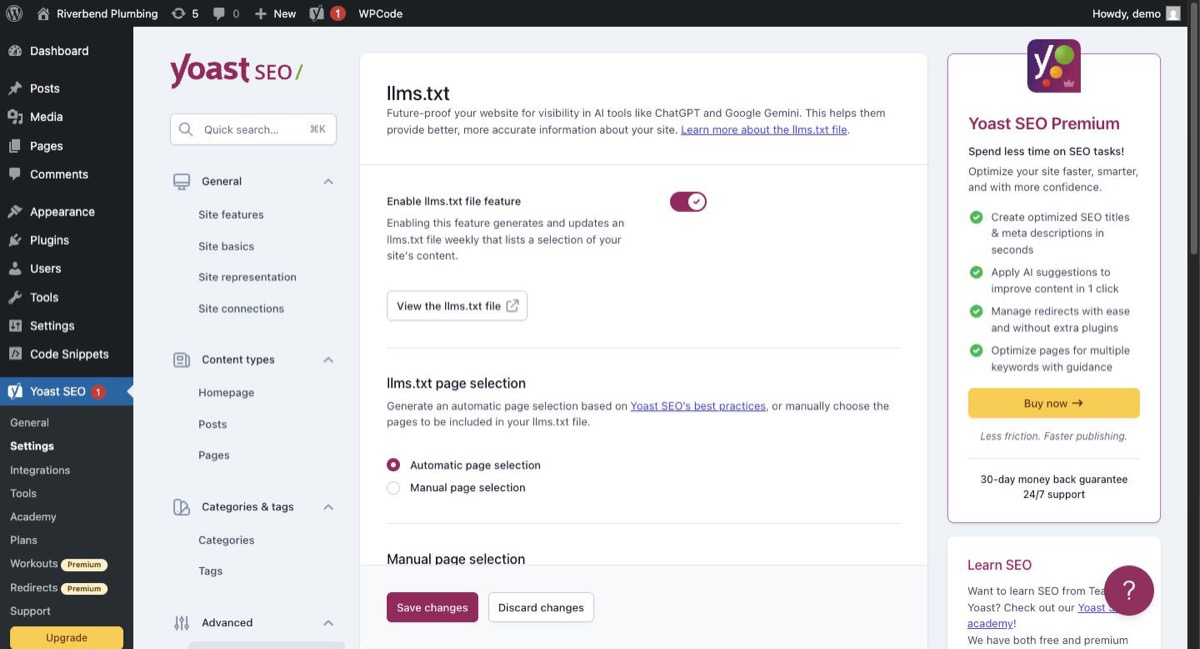
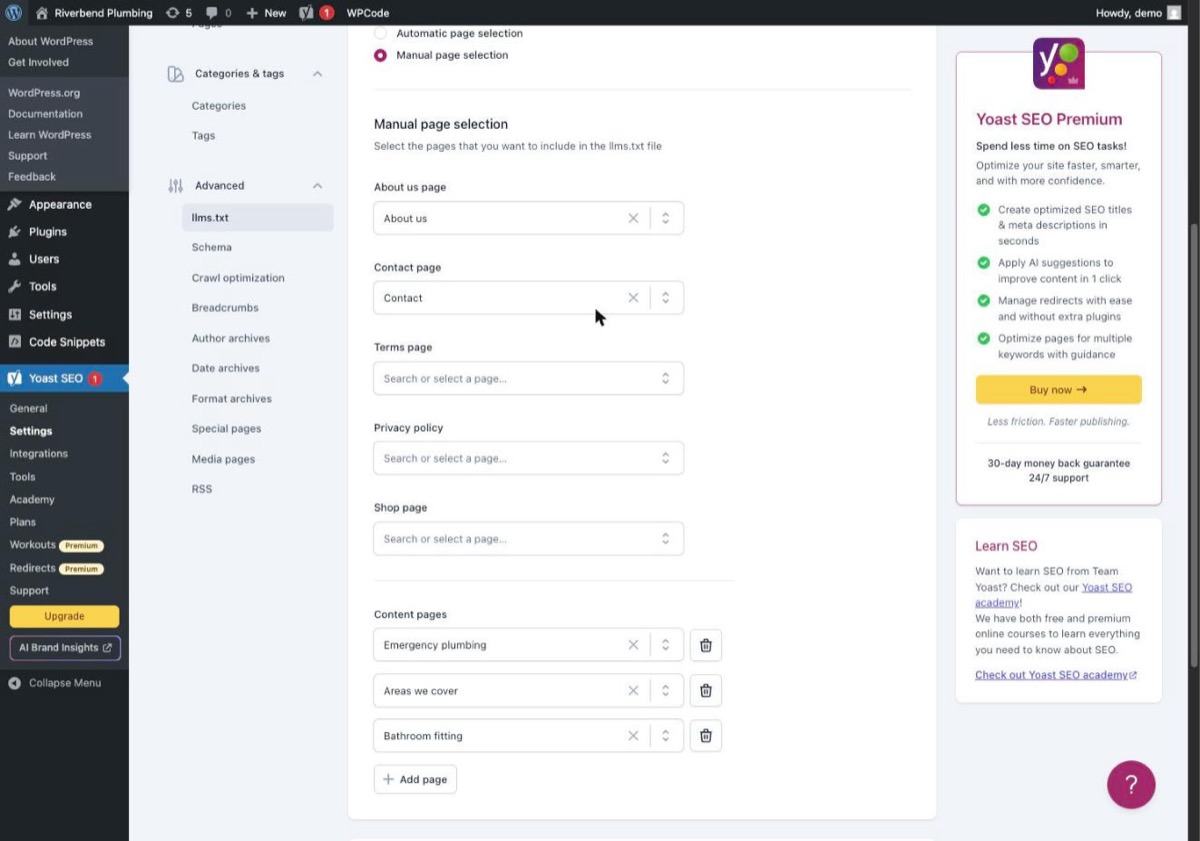
On a seven page demo site for a plumbing company, the automatic pick left out Boiler installation and Bathroom fitting: two of the services a customer would actually search for. Choose Manual page selection and name the pages you sell from, rather than letting an algorithm guess which of your pages matter to your business.
If you have no SEO plugin
WordPress is one of the few platforms where you can genuinely put a file at your own root.
Save the Fix Pack file as plain text, named exactly
llms.txt. A text editor, not a word processor, and check your operating system has not added a second extension.Open your host file manager, or connect over FTP. Most hosts put this under Files or File Manager in the control panel.
Put it in the folder that contains
wp-config.php. That folder is your site root. Notwp-content, and not a theme folder.Open
yourdomain.com/llms.txtin a browser. It should display as text rather than downloading.
Checking it worked
Open yourdomain.com/llms.txt and read the list. Do not take the settings screen at its word: on one site the page picker showed the page that had been chosen and saved nothing at all, and reading the published file was the only way to see it.
A caching plugin will happily serve the old file for a while, so clear the cache before you decide it did not work.
If your screens do not look like this, the wording has moved rather than the setting. Search your platform for the words in bold above. If you still cannot find it, send us the scan link and we will tell you where it is on your setup.