Everything this finding asks for is a field in WordPress rather than code. The title, the summary and the switch that hides a page live in your SEO plugin, the headings and photo descriptions live in the block editor, and the language is one site setting. This guide uses Yoast SEO. Rank Math and All in One SEO have the same fields in their own page panels.
The title and summary
Open the page in the editor and click the Yoast SEO icon in the top bar.
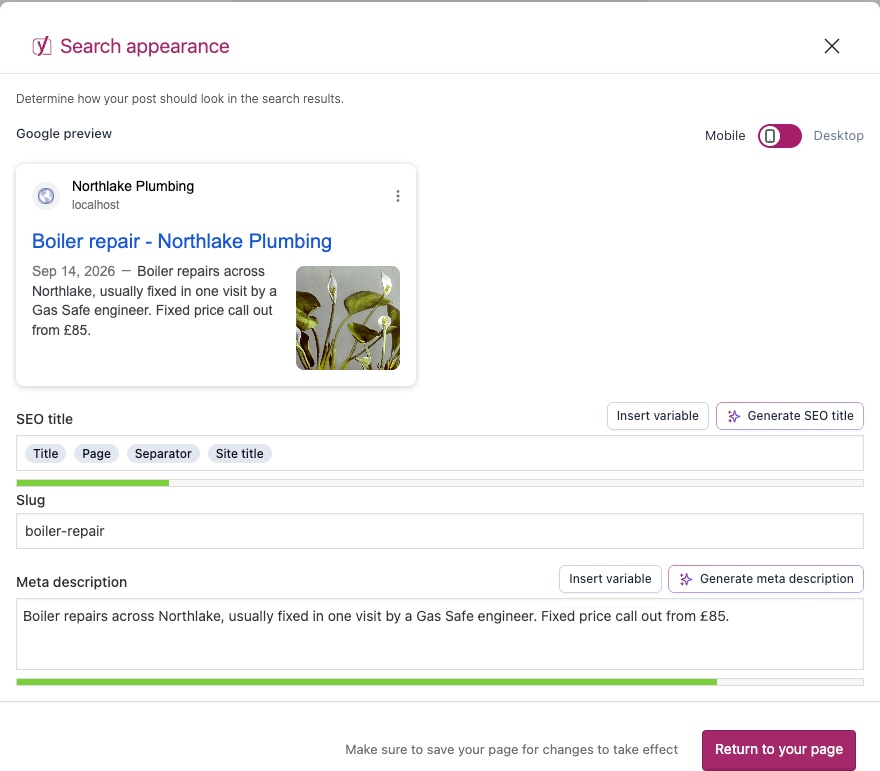
Search appearance in the panel that opens. The preview at the top shows how the page looks in a search result.
SEO title starts as the page name followed by your site name. Replace it with what the page offers and where, between 30 and 60 characters.
Meta description is empty until you write one, and while it is empty a search engine picks a piece of the page to show instead. Write one or two sentences, between 120 and 155 characters.
Return to your page, then Save. As the box itself says, nothing changes until the page is saved.
Work through the titles file one page at a time. Two pages sharing a title is flagged as well as a missing one, and the usual cause is a page duplicated to start a new one.
A page hidden from search engines
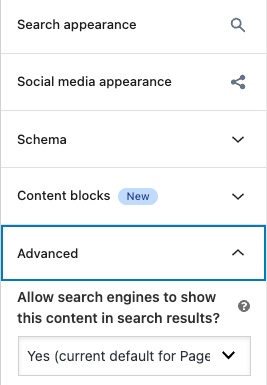
In the same Yoast panel, open Advanced.
Allow search engines to show this content in search results? should read Yes for every page you want found. If it says No, change it and save the page.
If every page is hidden, look at Settings, then Reading, and untick Discourage search engines from indexing this site. It is left on by accident after a site is built more often than anything else on this list. If the finding says the page is hidden by an X-Robots-Tag header, the setting is on your server, and your host can remove it.
One main heading
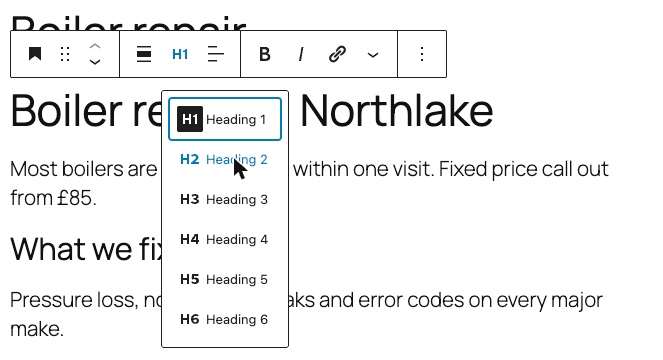
Most WordPress themes print the page name at the top as the Heading 1. On our demo site the boiler repair page had two, because the page itself also started with a Heading 1, and that is exactly the finding. Headings you add inside the page start at Heading 2.
Click the heading in the editor.
Click the level button in the toolbar above it, which reads H1.
Choose Heading 2, and save the page.
Describe your photos
Click the image in the editor.
Open the settings panel with the square icon beside Save, and choose Block.
Type what the photo shows into Alternative text, as you would describe it to somebody on the phone. Leave it empty only for a picture that is purely decoration.
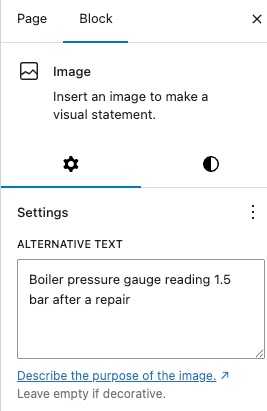
A description added here applies where the image is used on that page. Images in your media library carry their own Alternative Text field too, which is the one new pages pick up.
The site language
Go to Settings, then General, and set Site Language to the language your pages are written in. WordPress installs as English (United States), so a British business usually wants English (UK). Your theme prints it on every page for you.

Checking it worked
Open the page, view its source and search for <h1 (one result), name="description" (your summary), noindex (no result) and lang= (your language). A caching plugin will serve the old page for a while, so clear the cache first. Then re-run your scan.
If your screens do not look like this, the wording has moved rather than the setting. Search your platform for the words in bold above. If you still cannot find it, send us the scan link and we will tell you where it is on your setup.